<!-- Product research enrichment completed from six supplied context files; all visitor-facing copy written independently. -->

Deleted files, recovery risk, and device sanitization

Are Deleted Files Really Gone? How to Securely Delete Data

Deleting a file usually removes its directory entry, not every recoverable trace. The right next step depends on whether the data sits on an HDD, SSD, phone, USB drive, cloud service, or encrypted container.

Deletion Privacy Guide Editorial TeamUpdated July 2026Approx. 28-minute read
Quick answer

A file is not necessarily gone when you press Delete or empty a trash folder. On hard drives, its old sectors may remain readable until overwritten. On SSDs and modern encrypted phones, secure deletion relies more on TRIM, cryptographic erase, device-sanitation commands, and destruction of encryption keys than on repeatedly overwriting one file.

Why Deleted Files Are Not Really Gone

A file system tracks where a file begins, which storage blocks belong to it, and what name appears in a folder. Normal deletion usually changes that bookkeeping and marks the space reusable. It does not always immediately rewrite the underlying data.

That gap between “not listed” and “physically unrecoverable” is called data remanence. Recovery software can scan unallocated space for recognizable file structures. More advanced forensic tools can also use file-system journals, thumbnail caches, application databases, backups, synced copies, and metadata.

Important: Stop using a device immediately when you want to recover accidentally deleted data. New writes can overwrite the very blocks a recovery tool needs.

Deletion, recovery, and sanitization are different actions

Delete: removes a file from normal view and frees its logical space.

Recover: reconstructs data from trash, backups, metadata, unallocated blocks, or surviving encrypted copies.

Sanitize: makes access to target data infeasible for the expected level of effort. Modern guidance separates methods into clear, purge, and destroy.

Verify: confirms that the selected operation completed and the media no longer exposes the target data through ordinary or approved validation methods.

How to permanently delete deleted files from an Android phoneEmpty each app’s trash, remove cloud copies separately, then use the phone’s factory-reset process before transfer or resale. For high-risk data, confirm encryption is enabled and follow the manufacturer’s erase process rather than installing an untrusted “shredder” app.
How to delete deleted filesEmpty the Recycle Bin, Trash, Recently Deleted, or app-specific trash. On an HDD, wipe free space if old deleted data must be removed. On an SSD, use the manufacturer or operating-system secure erase or reset function.
Recover deleted files after factory reset AndroidCheck Google Photos, Drive, device backup, app backups, and any SD card first. On a modern encrypted phone, internal data without a backup is often not practically recoverable after a proper factory reset because the old encryption keys are removed.

Choose the problem you are actually trying to solve

The same “delete” question can mean accidental loss, privacy cleanup, device disposal, or access recovery. Choose a scenario to see the safest first step.

Minimize writes and check easy recovery paths first

Pause downloads, app installs, updates, and large file copies. Check the device trash, cloud trash, backups, and version history before running recovery software.

Deleting Data Securely

Use the least destructive method that matches the storage technology and your risk. A method that works well on a spinning hard drive may be unreliable or harmful on flash storage.

Method 1: Native deletion and emptying trash

Best for routine cleanup when the data is not highly sensitive.

2 minutesLow assurance

Delete the file, then empty the relevant system or app trash. Remember that cloud services, photo apps, email clients, and collaboration tools can maintain separate trash areas and retention periods.

Delete from the original app

Use the app that created or manages the file so its database and thumbnails update correctly.

Empty every relevant trash location

Check the operating-system bin, photo “Recently Deleted,” cloud trash, email trash, and any secure-vault trash.

Confirm synced copies

Look at other signed-in devices and shared folders. Deleting locally may not delete a copied or exported version.

Advantages
  • Fast and built in
  • Easy to undo before trash is emptied
  • Low risk of damaging a drive
Limitations
  • Old blocks may remain recoverable
  • Does not sanitize free space
  • Does not remove backups or replicas

Method 2: Securely delete files on a hard drive by overwriting data

Best for specific files or free space on a functioning magnetic HDD.

Minutes to hoursMedium to high assurance

On a magnetic hard drive, a reputable shredder can overwrite the file’s allocated sectors before removing its metadata. A free-space wipe targets remnants of files deleted earlier. For modern HDDs, one verified overwrite pass is generally more useful than ceremonial multi-pass patterns, though organizational policy may specify a method.

Verify it worked: Rescan the drive with a recovery tool that does not write to the source disk. The target file should not be recoverable by name, signature, or preview.
Advantages
  • Suitable for individual files
  • Can sanitize previously deleted free space
  • Works without erasing the entire drive
Limitations
  • May miss remapped or damaged sectors
  • Cannot erase remote backups
  • Time increases with drive size

Method 3: How to securely delete files from an SSD

Best for sanitizing a whole SSD through supported device commands or cryptographic erase.

5–30 minutesHigh when supported

SSDs use wear leveling, overprovisioning, garbage collection, and remapped blocks. Software cannot reliably guarantee that repeatedly writing over one logical file reaches every physical flash cell that once stored it. For whole-device sanitization, prefer a supported NVMe sanitize, ATA Secure Erase, manufacturer utility, platform reset, or cryptographic erase.

TRIM tells the SSD that blocks are no longer needed, but the timing and internal handling are controlled by the drive. Treat TRIM as part of normal flash management, not as a universal forensic-erasure certificate.

Avoid: Repeated full-drive overwrite cycles on an SSD. They add wear and still may not reach reserved or remapped cells.
Advantages
  • Device-native sanitization can cover hidden areas
  • Cryptographic erase can be fast
  • Better fit for flash architecture
Limitations
  • Command support varies
  • Verification can be vendor-specific
  • File-by-file guarantees are difficult

Method 4: How to securely delete files from a USB drive

Best method depends on whether the USB device is flash memory or an external HDD.

10 minutes to hoursVariable assurance

A USB flash drive behaves more like an SSD than an HDD. Individual overwrite operations may not touch all old flash cells. For a low-cost thumb drive carrying sensitive data, encryption from the beginning plus full-device erase or physical destruction at retirement is safer than relying on one-file shredding.

An external spinning hard drive can be treated like an HDD. Confirm the media type before choosing an overwrite or device-sanitize operation.

Advantages
  • Whole-drive reset is straightforward
  • Encryption limits exposure if lost
  • Portable protection tools can reduce future risk
Limitations
  • Cheap controllers may lack sanitize support
  • Flash wear leveling complicates file-level erasure
  • Lost copies may exist on host computers

Method 5: How to permanently delete deleted files from an Android phone

Best for routine cleanup, account removal, and safe transfer to a new owner.

10–45 minutesHigh after proper reset

Empty app-specific trash

In Files by Google, Photos, Drive, gallery apps, and messaging apps, remove items from each trash or recently deleted area.

Remove remote copies

Delete cloud versions separately and review shared albums, chat exports, computer backups, and SD cards.

Back up what you need

Confirm contacts, authenticator recovery codes, photos, documents, and app data before proceeding.

Sign out and factory reset

Use Settings to erase all data. Remove the SIM and SD card. After reset, verify that the setup screen appears and the old account is no longer accessible.

Recovery reality: On a modern encrypted Android phone, data in internal storage is commonly impractical to recover after a correct factory reset unless a cloud, app, computer, or removable-media backup still exists.

Method 6: Deleting data from apps, browsers, and cloud services

Best for account-level cleanup and copies stored outside the device.

VariesPolicy-dependent

Deleting app data, Facebook search history, Safari website data, browser cache, or end-to-end encrypted message history may remove different categories of information. Local cache deletion does not necessarily delete server records. Account deletion does not always take effect immediately because providers may retain backups, fraud-prevention records, or legally required logs.

Use the service’s privacy dashboard, export a copy before deletion, remove shared links, empty trash, revoke connected apps, and read the retention notice. For business records, involve the data owner and retention policy before erasing anything.

Method 7: Cryptographic erase for encrypted storage

Best for properly encrypted devices where the encryption key can be securely destroyed.

Seconds to minutesHigh when implemented correctly

Cryptographic erase makes encrypted data unreadable by securely destroying the media-encryption key. It can be much faster than overwriting an entire device, but it is only as strong as the original encryption, key generation, key storage, and proof that no usable key copies remain.

Best practice: Enable full-disk or container encryption before sensitive data is stored, not only at the end of the device’s life.

Which secure deletion method fits your device?

Choose the media, the scope of deletion, and whether you control the whole device. The recommendation is editorial guidance, not a substitute for an organizational sanitization policy.

Starting recommendation: For a few files on an HDD, use a reputable file shredder and verify with a read-only recovery scan.

Data recovery possibility meter

Recovery chance: High. Check trash and backups before doing anything destructive.

Security trust rating

1/5: Regular deletion is convenient but does not prove sanitization.

Use Folder Lock 10 when prevention and cleanup belong in one workflow

Folder Lock 10 is the strongest product fit on this page for a Windows user who wants more than a one-off delete command. The Windows edition brings encrypted lockers, access controls, targeted shredding, unused-space wiping, and local activity cleanup into one account-based workspace.

Its convenience has clear boundaries. It is not a replacement for an SSD controller sanitize command, a documented business disposal process, or a tested backup policy. The macOS, Android, and iOS editions are mainly built around encrypted storage, private vaults, and synchronization rather than whole-device sanitization.

Windows 10 and 11Shred selected dataWipe unused HDD spaceFree and Pro plans
LockersSyncSafeguardSecretsSettings

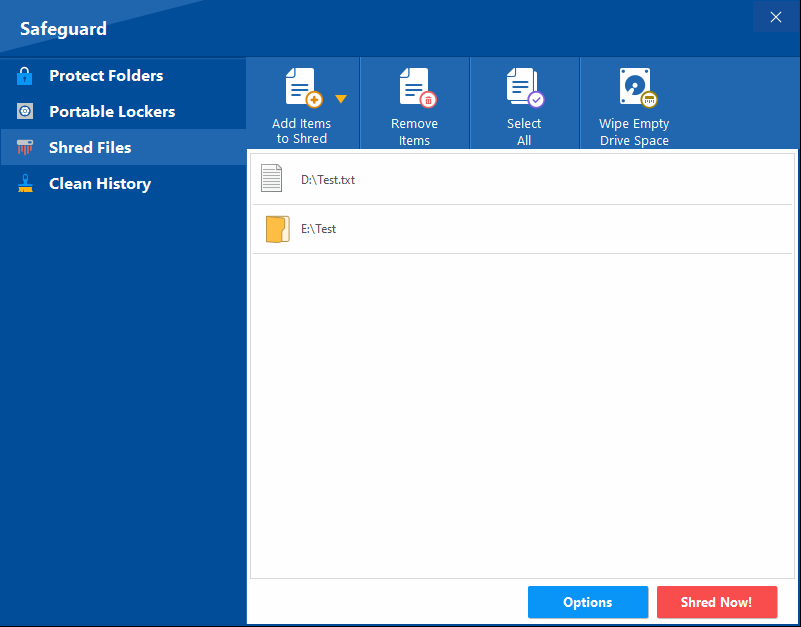
Safeguard / Shred Files

Choose what should be removed

Selected files and foldersTargeted
Unused drive spaceOld remnants
Overwrite methodReview first
Final check: confirm the storage type, selected path, retention duty, and every backup or synced copy before starting.

Secure deletion by real-world scenario

Home computer cleanup

Use normal deletion for routine files. Use a shredder for sensitive files on an HDD, and protect future files inside encryption from the start.

USB drive carried between PCs

Encrypt the drive before use. At retirement, sanitize the whole device if supported or physically destroy low-cost flash media that held high-risk data.

Business laptop disposal

Follow an approved policy, record device identifiers, select clear, purge, or destroy, verify completion, and keep a certificate or log.

Accidentally deleted photos

Stop using the device. Check recently deleted folders and cloud copies. Recover to a different disk to avoid overwriting source data.

Locked or encrypted folder

Use the owner’s recovery key, account reset, license record, backup, or official support. Do not use bypass or cracking tools.

Folder Lock 10 Portable Lockers screen for encrypted data carried on removable media

Folder Lock 10 features in context

Targeted shredding on Windows
Best for: disposing of selected files, folders, or supported drives through the Safeguard area instead of relying on the Recycle Bin. Not ideal for: certifying an entire SSD as purged.
Unused-space wiping for old HDD remnants
Best for: overwriting free areas where previously deleted hard-drive data may still remain. Not ideal for: live files, remote copies, or wear-leveled flash storage.
Choice of overwrite pattern
Best for: matching an HDD cleanup job to zero-fill, random-data, DoD-labelled, or Gutmann-style options. Not ideal for: assuming that more passes automatically produce better SSD coverage.
Free plan for basic cleanup
Best for: testing the Windows workflow with a 1 GB locker allowance and two linked devices. The current comparison also includes Shred Files and Clean History in the free plan. Not ideal for: users who need advanced folder protection or portable lockers.
Pro plan for protection and portability
Best for: unlimited locker capacity, up to five linked devices, sharing, Protect Folders, and Portable Lockers. Not ideal for: someone who only needs a single manufacturer-level SSD erase.
Encrypted cloud lockers with a recovery route
Best for: keeping encrypted copies inside supported Dropbox, Google Drive, or OneDrive folders and using the provider's trash or version history after an accidental deletion. Not ideal for: recovery when the original Folder Lock account credentials are lost.
Different roles on macOS and mobile
Best for: encrypted storage and cross-device access on macOS 13 or later, Android, iPhone, and iPad. Android adds app locking, while iOS includes local Wi-Fi transfer. Not ideal for: treating those editions as equivalents to the Windows desktop shredder or a device-sanitize utility.
Strong credentials with limited recovery
Best for: keeping encrypted data inaccessible without the original account. Not ideal for: users who expect support to decrypt old files after the password and email used for encryption are forgotten.
Folder Lock 10 Clean History controls for removing local Windows activity traces

Preventing deletion is different from securely deleting data

Secure deletion deals with information you no longer want. Delete prevention deals with information that must remain available. The safest workflow separates those goals and adds a versioned backup, because an access-control rule is not a recovery copy.

Folder Lock 10 Protect Folders screen for locking and hiding Windows data

Folder Protect for delete-proof access

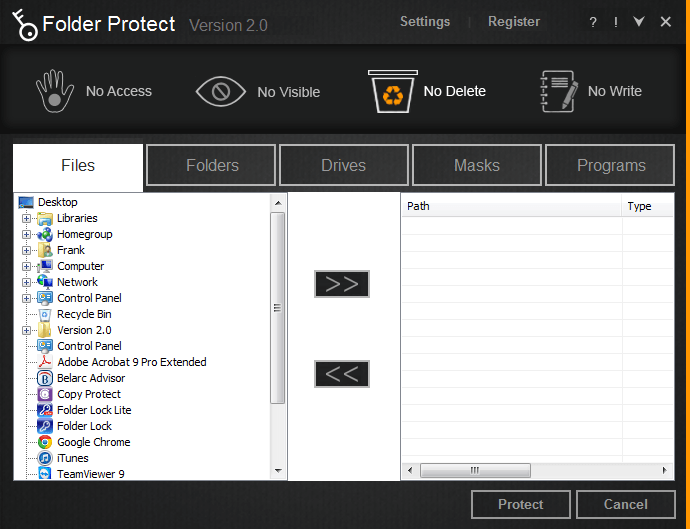
On Windows, Folder Protect can leave a file readable while blocking deletion, or apply separate rules that restrict writing, visibility, or access. The same policy can cover files, folders, drives, programs, and extension-based groups.

Use it when: people share a PC or need limited access to working documents. Do not use it as: encryption, secure erasure, or backup.

Folder Lock 10 Protect Folders

Pro users can use the Safeguard controls to lock and hide Windows items without moving them into an encrypted locker. This is useful when the immediate risk is casual access or accidental handling rather than forensic recovery.

Use it when: a folder should disappear from normal browsing. Do not use it as: proof that the underlying data has been erased.

Version history for actual recovery

A cloud locker can place encrypted files inside Dropbox, Google Drive, or OneDrive, where the provider's deleted-item and version tools may offer a recovery path. A Desktop Locker remains local and has no automatic remote rescue copy.

Use it when: accidental deletion is a realistic risk. Remember: restoration still requires the correct Folder Lock account.

Folder Protect No Delete rule selected for preventing removal of protected Windows files
Your goalBest fitWhat it changesImportant limit
Keep a shared file readable but block deletionFolder Protect with the “No Delete” ruleWindows access permissions around the live fileThe file remains on disk and still needs backup
Encrypt files and later remove selected Windows dataFolder Lock 10Encrypted lockers plus a separate shredding workflowNot a firmware-level SSD purge
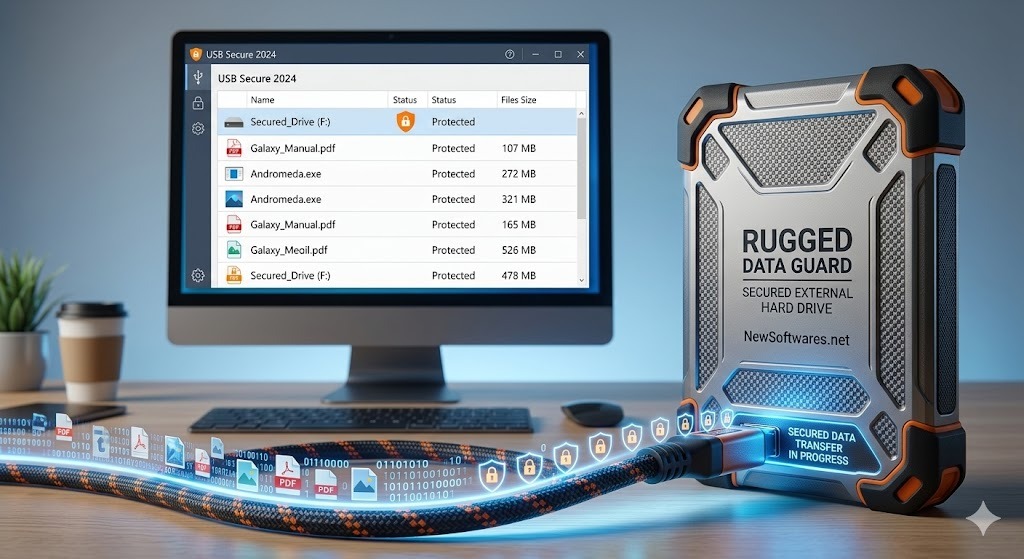
Protect an existing USB drive from loss or theftUSB Secure or a Portable LockerPassword-controlled access to removable dataProtection is not the same as sanitizing the drive
Recover from a mistaken deletionVersioned backup or cloud trashRestores an earlier surviving copyRetention windows and credentials still apply
Retire a whole SSDVendor or operating-system sanitize processHandles the device at controller or key levelRequires media-specific verification

Secure deletion method comparison

MethodDifficultySecurityCostBest forLimitations
Routine deletion
Empty trashEasyLowFreeRoutine cleanupRecoverable blocks and backups may remain
Magnetic hard drives
HDD file overwriteModerateGoodFree or paidSpecific HDD filesMay miss remapped sectors and does not remove remote copies
HDD free-space wipeModerateGoodFree or paidOld deleted filesCan be slow and does not touch live files
Flash and encrypted storage
SSD sanitize or secure eraseAdvancedHighUsually freeWhole SSDSupport and verification vary by device
Cryptographic eraseAdvancedHighBuilt in or managedStrongly encrypted mediaRequires assurance that all usable keys are destroyed
Privacy software and final disposal
Physical destructionSpecialistVery highVariesFailed or retired high-risk mediaThe device cannot be reused and safety controls are needed

How to securely delete files using Folder Lock 10

1

Confirm that shredding suits the media

Use the desktop shredder for selected Windows data and HDD free-space cleanup. For a whole SSD, choose the drive maker's sanitize or cryptographic-erase path instead.

2

Open Safeguard, then Shred Files

Sign in to the legitimate Folder Lock installation, open the Safeguard area, and select the dedicated shredding tool rather than ordinary Windows deletion.

3

Add the target or choose unused-space wiping

Add the exact files, folders, or supported drive you intend to remove. Choose the unused-space option only when the goal is clearing remnants of files that were deleted earlier.

4

Select an overwrite method

The product offers zero-fill, random-data, DoD-labelled, and Gutmann-style choices. For a healthy modern HDD, correct targeting and successful completion matter more than selecting the largest pass count.

5

Review the irreversible warning

Recheck the full path, legal and business retention rules, open applications, connected-drive stability, and whether a backup is still required before confirming.

6

Wait for completion and verify every copy

Keep the computer powered, wait for the success result, and then inspect cloud storage, provider trash, email attachments, exports, recipients, and other devices for surviving duplicates.

Folder Lock 10 Safeguard screen for adding files and folders to the shredder

What actually happens below the file icon

File names, timestamps, cluster maps, journal records, and directory entries can survive independently of content. A recovery tool may reconstruct a file from metadata, carve content by signature, or combine both.

The SSD controller maps logical addresses to physical flash pages and moves data to spread wear. The operating system does not directly control every physical location, which is why a file overwrite cannot prove every historical copy was reached.

When every stored block is encrypted with a strong media key, securely destroying that key can make remaining ciphertext unusable. Assurance depends on key quality, key copies, backups, and implementation.

A deleted endpoint file may still exist in snapshot history, cloud trash, collaboration versions, email attachments, phone backups, removable media, and another user’s downloads.

How file system forensics works and what can be recovered

Trash and logical recovery

The easiest recovery restores a still-indexed file from trash, a snapshot, a backup catalog, or cloud version history.

Metadata reconstruction

Investigators examine directory entries, master file tables, journals, allocation maps, databases, thumbnails, and application logs.

File carving

Tools scan raw storage for known headers, footers, and internal structures. Carved files may lose their original name and folder path.

Mobile and app artifacts

Messages, photos, and documents can leave database rows, cached previews, notifications, attachments, synced copies, or backups.

Formatted drives

A quick format may replace file-system structures without overwriting all content. A full erase or sanitize operation can reduce recovery potential.

Wiped or destroyed media

Recovery becomes much less likely when an approved purge or destroy method is correctly completed and verified.

Chain of custody: If a device may be evidence, do not experiment with recovery or wiping. Isolate it, document who handled it, preserve time and device details, and involve a qualified forensic professional.

Overwriting on a hard drive vs an SSD

Spinning hard drive

The system can usually rewrite the logical sectors that held a file.

Solid-state drive

The controller may remap writes to new flash pages while older pages await internal garbage collection.

DoD 5220.22-M vs NIST 800-88 vs Gutmann

These names are often marketed as if more passes automatically mean more security. The better question is whether the method matches the media and whether completion can be verified.

Best general reference: Use NIST SP 800-88 Rev. 2 to choose a media-appropriate sanitization method and record verification. Read the official NIST publication.

File shredders and secure erase tools compared

Folder Protect main Windows interface for configuring access and deletion controls

Folder Protect

Applies Windows rules that can stop deletion, block changes, hide items, or deny access while leaving the live data in place.

  • Useful on shared PCs
  • Can target folders, drives, programs, and file-type groups
  • Does not encrypt, erase, or create a recovery copy

Best for: preventing accidental or unauthorized changes before data is lost.

Drive manufacturer utility

Uses supported ATA, NVMe, or vendor-specific commands to sanitize the whole SSD or storage device.

  • Better media-level coverage
  • Usually available without a separate license
  • May require boot media, firmware support, or a specific security state

Best for: retiring or repurposing a supported SSD.

Built-in encrypted-device reset

Uses a phone, tablet, or computer's native reset process to remove accounts and invalidate access to encrypted user data.

  • Simple and platform-aware
  • Appropriate for many modern mobile devices
  • Does not remove separate cloud, recipient, or backup copies

Best for: transferring a modern encrypted phone or tablet.

Physical destruction service

Damages storage components so ordinary reuse and recovery are no longer practical.

  • High assurance for failed or high-risk media
  • Supports documented chain-of-custody workflows
  • Eliminates reuse and requires safe handling

Best for: failed, regulated, or non-reusable media.

No single product covers every storage technology. Folder Lock 10 is a broad Windows privacy workflow, Folder Protect prevents deletion without erasing data, and a vendor sanitize utility is generally the better match for a whole SSD.

Folder Lock 10 pricing: choose by the job, not the longest feature list

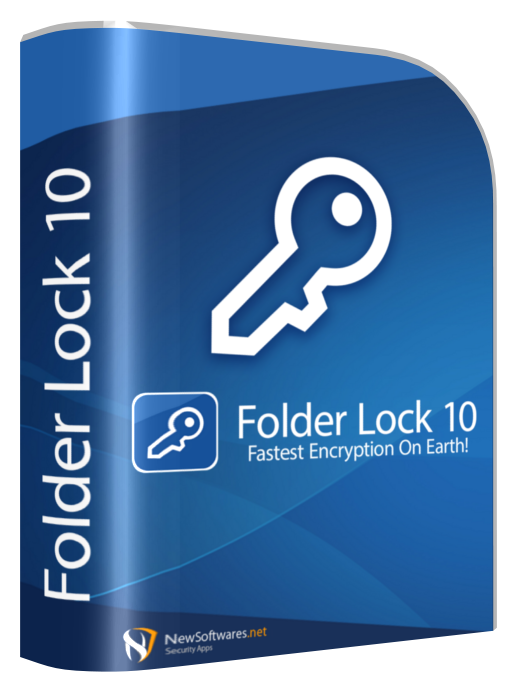
Folder Lock 10 software box artwork used beside the plan and pricing guidance

Select what you need

Current match

Start with Folder Lock 10 Free

$0

The free plan is enough to evaluate the Windows interface, basic shredding, history cleanup, a 1 GB locker, and two linked devices.

Download free →

Folder Lock 10 Free

$0

1 GB of locker space, two devices, basic program access, Shred Files, and Clean History.

Folder Lock 10 Pro

$39.95/year

Unlimited locker capacity, five devices, sharing, Protect Folders, Portable Lockers, and the full feature set.

Folder Protect

$39.95 once

A separate Windows tool for no-delete, no-write, no-access, and hidden-file policies. It does not securely erase data.

USB Secure

$29.95 once

A separate Windows product for password-protecting removable drives. It does not replace a wipe or sanitize process.

Pricing note: these figures were checked against the official store in July 2026. Folder Lock 10 Pro renews yearly, while Folder Protect and USB Secure are listed as one-time purchases. Checkout terms remain authoritative.

Samsung Secure Folder deleted files and access recovery

Can I access my Samsung Secure Folder from a PC or online?

Samsung’s current support guidance says Secure Folder itself can only be accessed on the Galaxy phone or tablet. It cannot be opened directly from the web or a computer. You can move authorized files out of Secure Folder on the device, then transfer those files normally.

Can I access Secure Folder from another phone?

It is not a remote online vault. On supported devices, Smart Switch may transfer Secure Folder data during a device migration. The old device, account verification, compatible software, and available transfer options matter.

Can I have more than one Secure Folder?

Samsung Secure Folder is designed as a single isolated workspace per supported device profile. You can organize multiple albums, folders, or apps inside it rather than creating multiple independent Secure Folder instances.

Forgot your Secure Folder lock?

Use the official “Forgot” or reset path only if “Reset with Samsung account” was enabled. Sign in to the verified Samsung account and set a new lock. If reset was not enabled, Samsung states that access cannot be recovered through that path; the remaining owner-safe option may be to remove Secure Folder and start again, which can erase its contents.

Recover deleted files from Samsung Secure Folder

Check the Secure Folder versions of Gallery, My Files, app trash, prior Samsung backups, and an authorized Smart Switch transfer. Do not install tools that claim to bypass the lock or extract Secure Folder keys.

Delete Secure Folder on Samsung

Before uninstalling, choose the offered option to move media files out if you still need them. Then use Settings, Security and privacy, More security settings, Secure Folder, More settings, and Uninstall. Menu names can vary by One UI version.

For current device-specific steps, use Samsung’s official Secure Folder guide. This page does not provide bypass, cracking, credential-dumping, or unauthorized-access instructions.

What to do before selling or donating a computer

Back up what you need, sign out of services, remove device authorizations, identify the storage type, sanitize it with an appropriate method, and verify the result before the device leaves your control.

0 of 7 completed

Secure deletion troubleshooting

Deletion failed because the file is in use

Close the application that owns the file, pause synchronization, and check Task Manager for a remaining process. Restart Windows if the handle is stale. Do not force-remove an unfamiliar system file.

Program to delete files that cannot be deleted

Confirm ownership and permissions before using any removal utility. A shredder will not repair corruption, neutralize malware, or make an operating-system component safe to delete.

External drive disconnects during wiping

Reconnect the drive directly, replace suspect cables, avoid an unpowered hub, and review device health. A partial run is not proof of sanitization, so restart only after the connection is stable.

SSD secure erase option is unavailable

Check the vendor utility, firmware support, NVMe sanitize capability, BIOS or UEFI security state, and whether the drive is mounted or frozen. Follow the manufacturer's exact power and boot instructions.

Deleted files keep returning

Another device or cloud service is probably restoring the authoritative copy. Pause sync, remove the item from the correct account location, empty its remote trash when appropriate, and then resume sync.

A Folder Lock file appears to be missing

Check the Desktop, Dropbox, Google Drive, OneDrive, and Mobile Lockers, then review Portable Lockers and Protect Folders. Search for legacy locker extensions only on storage you own, and sign in with the same account that created the encrypted data.

You forgot the Folder Lock account password

An account reset can restore access to the account for new data, but it does not decrypt older files created with forgotten credentials. Preserve every encrypted container and contact official support for account or uninstall assistance, not for a decryption bypass.

A file was deleted from a cloud locker

Open the relevant Dropbox, Google Drive, or OneDrive trash or version history and restore the encrypted item there. Folder Lock can then synchronize the surviving encrypted copy, provided you use the original account credentials.

Before uninstalling Folder Lock

Copy needed files out of every locker, export stored secrets, unprotect folders, and verify the readable copies independently. Removing the application before that work is complete can leave encrypted data inaccessible until the software is installed again.

Recover deleted files after a format

Stop writing to the device, determine whether the format was quick or full, and save any recovered data to different media. SSD TRIM, encryption, and later use can reduce the recoverable material sharply.

Troubleshooting flowchart

Can you still access the original device and account?

Choose an answer to continue.

What people value in a practical privacy workflow

These summaries paraphrase common use cases reflected in current Folder Lock customer feedback. They are not independent laboratory tests.

Layered protection matters most when work files contain regulated or client information.
Financial-services workflow, paraphrased from published product feedback
A clear interface makes encryption and privacy tools more likely to be used consistently.
Long-term Windows user workflow, paraphrased from published product feedback
Legal teams care about both access control and defensible shredding when a retention period ends.
Legal-services workflow, paraphrased from published product feedback
Portable encrypted lockers reduce the need to leave plain copies on every computer.
Removable-media workflow, based on the documented feature set

Which method or tool is right for you?

Your situationRecommended methodIs Folder Lock 10 a fit?Honest alternative
One sensitive file on an HDDVerified file shredYesAnother reputable HDD-aware shredder
Old deleted files on an HDDFree-space wipeYesOperating-system or trusted disk utility
Retiring an SSDDevice sanitize or cryptographic eraseNot the primary toolManufacturer utility or managed platform erase
Selling a modern encrypted phoneOfficial factory resetNoManufacturer reset and account-removal process
Lost USB flash drive riskEncrypt before storing dataPortable locker can helpUSB Secure or hardware-encrypted drive
Failed drive with high-risk dataCertified destructionNoDocumented specialist service

Deleted files, secure deletion, and recovery FAQ

Can deleted files always be recovered?

No. Recovery depends on the media, what happened after deletion, encryption, TRIM, backups, overwrite activity, and whether an approved sanitize or destroy process completed.

How many times do you need to overwrite a file to truly delete it?

On a functioning modern HDD, one verified overwrite is generally more meaningful than many unverified passes. SSDs require a different approach because file-level overwriting cannot reliably address wear-leveled and reserved flash areas.

What is the Gutmann method for secure deletion?

It is a 35-pass pattern created for older magnetic-drive encoding methods. It is usually unnecessary for modern storage and is not a suitable answer to SSD sanitization.

Does Folder Lock 10 Free include file shredding?

Yes. The current product comparison lists Shred Files and Clean History in the free plan, together with a 1 GB locker limit and two linked devices. Pro is needed for features such as Protect Folders, Portable Lockers, larger capacity, more devices, and full sharing.

What is the best free tool to securely delete files?

The best free option depends on the media. Use a reputable file or free-space wiping utility for an HDD, and the drive maker’s supported secure erase or sanitize utility for an SSD.

How to securely delete files from a USB drive?

Identify whether it is flash or a spinning external HDD. For flash, use encryption from the start and a whole-device erase or destruction strategy at retirement. For an external HDD, a verified overwrite can be appropriate.

Can files be recovered after a factory reset?

Cloud and app backups may be restored. Internal data on a properly reset modern encrypted phone is often not practically recoverable because the old key material is removed.

Is it possible to recover files from a formatted hard drive?

Sometimes, especially after a quick format on an HDD. Stop using the drive and recover to a different disk. A full overwrite, secure erase, key destruction, or physical destruction reduces the chance.

Can hackers recover permanently deleted photos?

They may recover copies from trash, backups, cloud accounts, app caches, thumbnails, or unallocated storage if the data was not sanitized.

Can deleted data be recovered from an SSD?

Sometimes. TRIM and garbage collection can make recovery much harder, but outcomes vary by drive, operating system, timing, encryption, and whether the device remained powered.

How to recover files from a folder locked by Folder Lock?

Sign in with the exact account that created the data, then check Desktop, cloud, Mobile, and Portable Lockers as well as Protect Folders. Restore a deleted cloud-locker item through the cloud provider when possible. Do not remove the encrypted container while troubleshooting, because resetting the account does not decrypt older files created with forgotten credentials.

What does DoD 5220.22-M wiping standard mean?

It commonly refers to historical overwrite patterns associated with older U.S. Department of Defense guidance. Modern sanitization decisions should be media-aware and risk-based.

How do I safely dispose of an old hard drive?

Back up needed data, identify the media, select a clear, purge, or destroy method, verify completion, and record the result.

Can police recover deleted files from a wiped hard drive?

Properly completed and verified sanitization can make recovery infeasible for the intended level of effort. A vague claim that a drive was “wiped” is not enough.

Can I access my Samsung Secure Folder from a PC?

No direct PC or web access is provided for the Secure Folder itself. Use the Galaxy device to move authorized files out before transferring them.

Can I access Samsung Secure Folder from another phone?

Not as a remote login. A supported Smart Switch migration may transfer Secure Folder data between compatible Galaxy devices when you control and verify both devices.

How to reset my Secure Folder lock?

Use the official Forgot or Reset option with your Samsung account if reset was enabled. If it was not enabled, access may not be recoverable.

Can I delete Secure Folder on Samsung?

Yes. Review the option to move media files out before uninstalling, then use Secure Folder settings and confirm removal.
In-depth answers by search intent

Deleting data from a hard drive

For routine cleanup, delete and empty trash. For sensitive files on an HDD, overwrite selected files before deletion. For old deleted material, wipe free space. For device disposal, sanitize the whole disk and verify.

Do not confuse formatting with guaranteed sanitization. A quick format can leave recoverable data, while a full device operation may vary by operating system and media.

Deleting app data and cache on Android

Clearing cache removes temporary local files. Clearing app storage resets the local app state. Uninstalling removes the installed package and local data under normal app control, but synced account data and cloud backups can remain.

Use the app’s account settings when the goal is server-side deletion. Export important data first and review the provider’s retention notice.

Deleting website data on Safari

Clearing website data can remove cookies, local storage, and cached site files from the device. It does not delete the website operator’s account records, purchases, messages, or server logs.

For account deletion, use the service’s privacy or account controls separately.

Deleting search history on Facebook

Use the account’s activity log or search history controls and verify the date range. Clearing local browser history is a separate action and does not necessarily remove activity stored in the account.

Review connected sessions and downloaded copies if privacy after deletion is the goal.

Deletion failed

A file can resist deletion because it is open, permission-restricted, corrupted, syncing, quarantined, or controlled by the operating system. Identify the owning process and file purpose before forcing removal.

Secure Folder locked notification

Open Secure Folder from Settings or Quick Settings, enter the legitimate credential, and review auto-lock settings. Use Samsung account reset only when it was enabled beforehand.

Access Samsung Secure Folder from PC

Direct access is not supported. Move authorized files out on the phone or use an approved device migration workflow. Avoid PC tools that promise to bypass Knox or extract credentials.

Software to delete files that cannot be deleted

Use a trusted tool only after confirming the file is yours and not required by Windows or an application. Resolve permissions, malware, disk errors, or active handles first.

Secure deletion vs regular deletion

Regular deletion favors convenience and recoverability. Secure deletion aims to make recovery infeasible. The correct technique depends on HDD, SSD, flash, encrypted mobile storage, cloud retention, and disposal risk.

File shredder algorithms compared

Algorithm names describe overwrite patterns, but pass count alone is a poor quality measure. Media compatibility, correct targeting, handling of remapped areas, completion reporting, and verification are more important.

Folder Lock vs Folder Protect

Folder Lock 10 combines encrypted lockers, Windows shredding, free-space wiping, history cleanup, synchronization, and optional folder protection. Folder Protect is a separate Windows access-control product that can block deletion or writing while a file remains available.

Choose Folder Lock when encrypted storage and disposal are both part of the job. Choose Folder Protect when the main risk is accidental or unauthorized deletion of live files. Neither product replaces a controller-level SSD sanitize command.

USB Secure vs secure deletion

USB Secure protects access to data on a removable drive. Secure deletion removes data. Encryption and deletion are complementary controls, not interchangeable features.

What is the best free data recovery software?

The safest choice depends on the file system and media. Prefer a well-documented tool from a reputable publisher, install it on another device, and save recovered files to a different drive.

For high-value business, legal, or irreplaceable data, stop DIY attempts and use a qualified recovery service.

Recover deleted files after factory reset Android

Sign in to the same Google and app accounts, check cloud backups, Photos, Drive, messaging backups, and the SD card. Internal plaintext recovery claims should be treated skeptically on modern encrypted devices.

Recover securely deleted files

If secure deletion was correctly completed, recovery may be infeasible. Check whether the tool actually finished, whether the target was an HDD or SSD, and whether another copy exists in backup, sync, email, or a recipient’s device.

How to protect files from being deleted

Keep a versioned backup first, then add access controls. On Windows, Folder Protect can apply its “No Delete” rule while leaving a document readable, and separate rules can block writing, hide the item, or deny access.

Test the policy on a disposable sample before protecting important data. Delete prevention reduces mistakes, but it cannot restore a file after disk failure, ransomware damage, or loss of the entire device.

The bottom line

Deleted files are not automatically unrecoverable. On HDDs, remnants can survive in unallocated space until overwritten. On SSDs and modern phones, controller behavior and encryption make device-native sanitize or cryptographic erase more appropriate than repeated file overwrites.

For most Windows users who want a practical combination of prevention and cleanup, Folder Lock 10 is a useful option because it brings encrypted lockers, folder protection, file shredding, and free-space shredding into one interface. It is not the right tool for every task, especially whole-SSD sanitization or certified business destruction.

Match the method to the media, check all copies, and verify completion. That is more important than choosing the wipe algorithm with the largest pass count.